

Splashtop is an iPhone and iPad application that allows you to access your computer from anywhere and do just about anything you could do on the computer, remotely.
If you’re downloading programs, you can manage your downloads remotely. If you need a file on your computer, you can use your iPhone to start an upload. You can even use it to turn off your computer, if you accidentally left it on. The applications are endless.
Here’s how to use Splashtop to access your computer from anywhere.
Step 1: Download and Install Splashtop
Download the Splashtop desktop application at: http://www.splashtop.com/streamer
Download the iPhone application from the iTunes store.
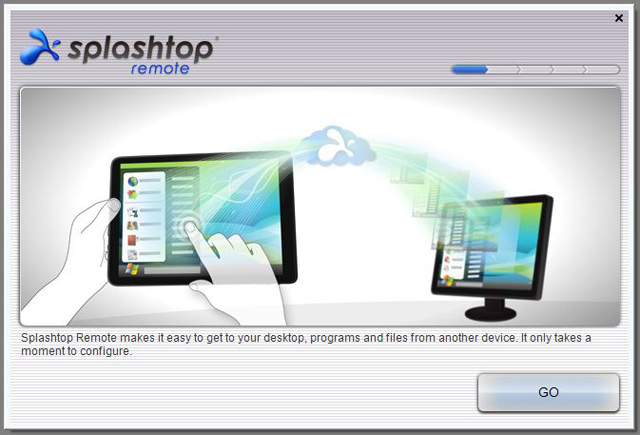
Start by installing the desktop application.
Step 2: Choose a Password
The password you choose should be extremely difficult to guess, with a combination of letters and numbers. For extra security, have uppercase and lowercase letters.
Remember that anyone who guesses this password could potentially access your whole computer. Pick a unique, non-word difficult to guess password.
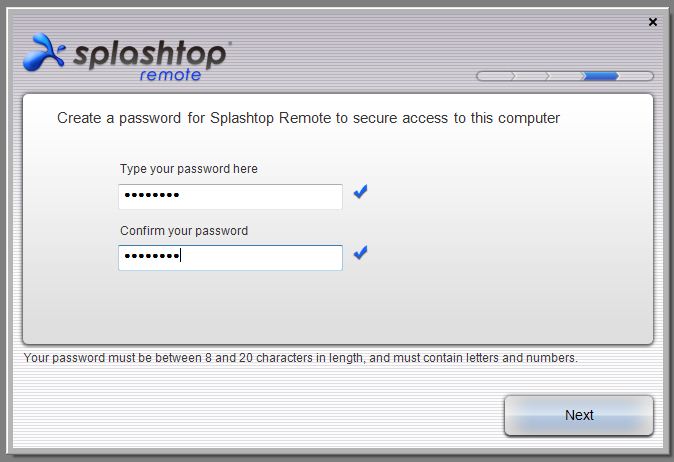
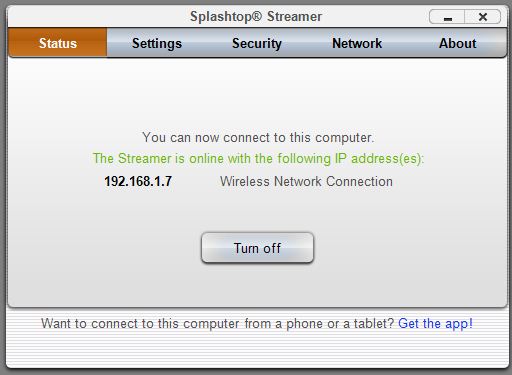
Click “Next,” then “Continue.” When setup is complete, you’ll see this screen:
Step 3: Enable Internet Discovery
Once the setup is complete, you’ll be able to access your computer from your iPhone if you’re on the same wifi network.
But if you want to access your computer from anywhere on the internet, which will usually be the case, you’ll need to enable internet discovery.
Click on “Settings” along the top of the Splashtop application.

Then check “Enable Internet Discovery.”
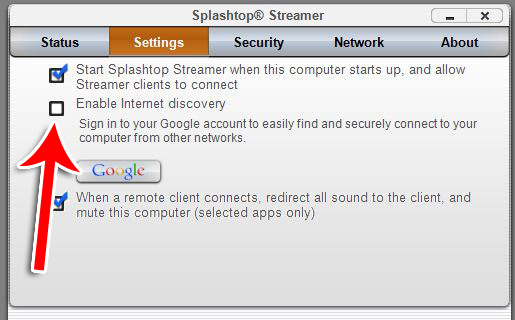
Once checked, click the “Google” button to enter your login information. Splashtop uses Google for its internet discovery, so you’ll need a Google account to use it properly.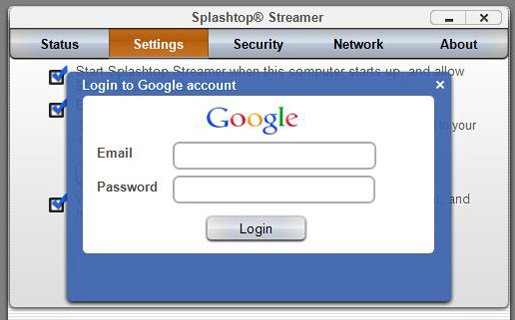
If the login information worked, you’ll see this confirmation:
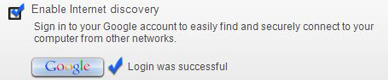
That’s all the setup you need to do on the desktop application.
Step 4: Replace with Your PC on Your iPhone
Now that your PC is setup to be controlled by another device, here’s how to connect the two.
Upon launching your iPhone application, you’ll see a primarily blank screen. Click the “Settings” button in the upper right corner.
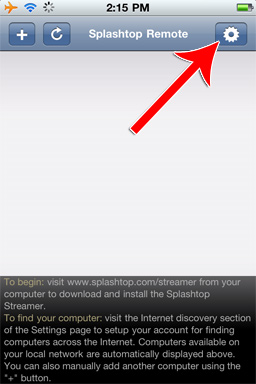
Then click “Internet Discovery.”
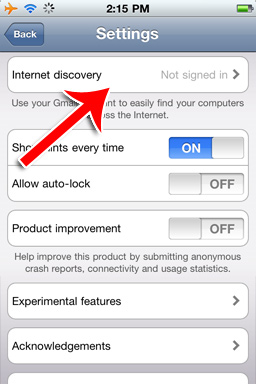
Enter your login information.
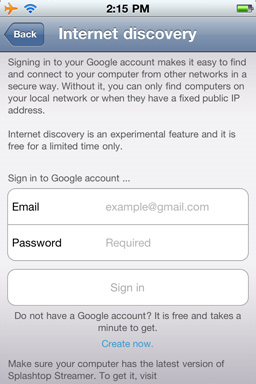
Step 5: Accessing Your PC
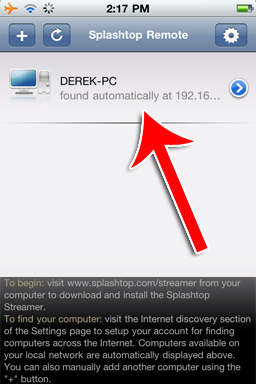
After connecting to your Google account, the Splashtop app will use the login information to find your PC. Go back to the main screen and access your PC by clicking on its name.
Enter your password.
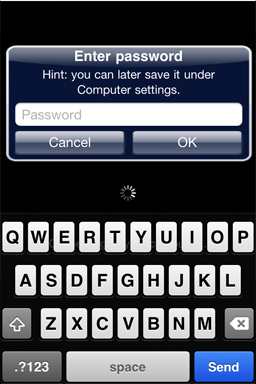
You’ll now be in control of your computer from your iPhone.
Step 6: Navigating the Interface
Splashtop will present you with a list of finger / mouse commands and operations the first time you log in.
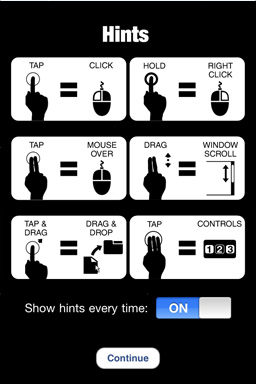
This is an example of what your computer screen might look like on your iPhone.
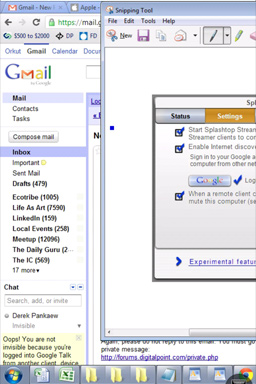
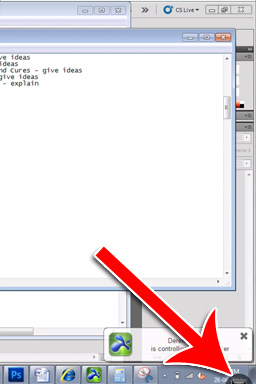
To access your keyboard, click the little black button in the lower right.
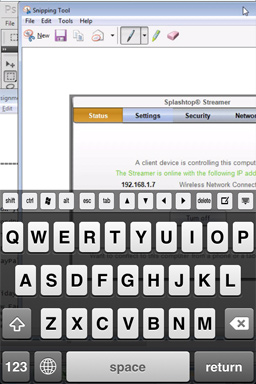
The keyboard will then pop up.
Congratulations! You’ve now learned how to setup Splashtop on both your desktop and your iPhone. You’ll be able to do just about anything you can do on your computer from your iPhone interface, including processing-heavy tasks, because it’s processed by your computer rather than your iPhone.
