

In this tutorial, we will show you how to add your business to Google Places, which may help you gain more business publicity, exposure, traffic, and opportunities to reach potential customers or clients.
You will need:
- A Google Account (use one associated with your business and that can be shared with others such as assistants and service providers.)
- Basic Business Info (i.e. Name, address, phone number, URL, etc.)
Step 1: Go to http://google.com/lbc
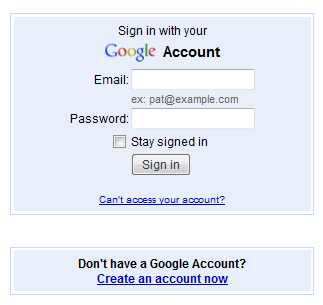
Step 2: Log into your Google account.
On the Google home page, log into your Google account in the right sidebar.
Step 3: Add a business.
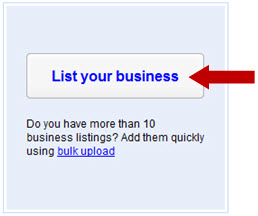
To get started, simply click the “List your business” button. If you have more than one business you’d like to add but this is your first time going through the process, we recommend that you go through the steps with one business to familiarize yourself with the steps and information required. After that, you may choose to use the bulk upload option.
Step 4: Add your country and phone number.
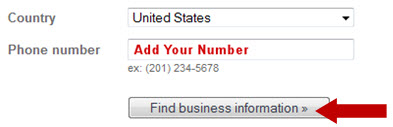
Select your country from the dropdown. Add your phone number and click the “find business info” button to collect information already available about your business. This is based on your phone number so there may not be any info available.)
Step 5: Add basic information.
In this step, you will add business information which includes your:
Country
– Select from dropdown
Company Name
– List exactly as you would a brick and mortar business
Street Address
– P.O. boxes are not allowed
City, State, Zip
– You will have the option to hide this info and set a service area in the next step.
Main Phone Number
– This should be the number to your business. You also have the option to include additional phone numbers.
Email address
This should be your support or public contact email address.
Website URL
– If you don’t have a website, check the “no website” box.
Description
– You may choose up to 200 characters.
Category (up to five)
– You must choose at least one from the list of categories offered in the dropdown. (Hint: The dropdown shows categories related to the first word you type in.) If you offer business to business services such as a virtual assistant, begin by typing “business or assistant” or one of the main keywords related to your business.
Step 6: Define your customer service type.
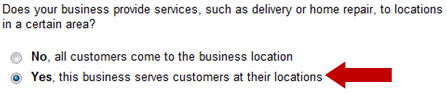
In this step, you will define your customer service type by answering answer a question about where your customers or clients receive services.
If you have a local business where customers or clients come to the address you are listing, you will choose the first option – “No.”
If you operate an online business from home, that does not require customers or clients come to the address, choose the second option – “Yes.”
Step 7: Select your service area and location settings.
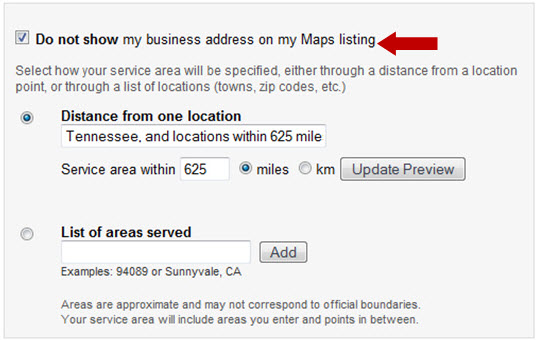
As we said earlier, if you operate an online business from home and customers or clients do not come to the address you provided earlier, you may want to hide that address from your listing. To do that, just click the check box next to “Do not show my business address on my Maps listing.”
Next, you will select your service area by distance or by list of areas served.
Service Area By Distance
When using the distance option supply your location (actual address, city only, or state only) and then choose the number of miles or kilometers around that area. In the example below, we chose the state of Tennessee and the surrounding 625 miles. Note: 625 is the maximum number allowed.
Service Area By List
If you’d like to choose a larger or more specific area, you may choose to define your service area by a list of specific addresses, zip codes, cities, or states/provinces.
(Hint: To choose the continental US, add the 4 corner states of Washington, California, Maine, and Florida – WA, CA, ME, and FL, respectively. You may also add other areas such as the provinces of Canada. Obviously, your service area will differ depending on your location and country.)
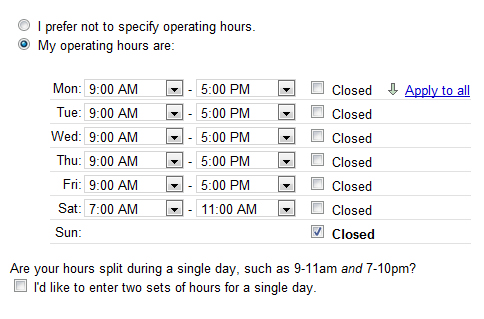
Step 8: Add your office hours.
Let people know when you’re operating hours or when you’re open for business. Just edit the days and times when you’re open and closed.
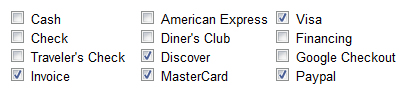
Step 9: Add the payment options available to your customers.
Include your payment options for potential customers or clients who prefer to pay in a certain way.
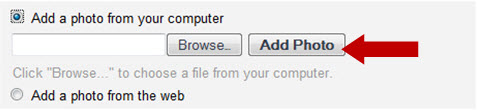
Step 10: Add photos and videos to your Google Places page.
Add up to 10 eye-catching photos from your computer or from an online folder. Make sure hold the copyright for these. To add an image from your computer, click the “Browse” button to search for images. Then click the “Add Photo” button to upload.
If you want to use an image, which you already have uploaded online, choose the “photo from web” option and add the URL of the image. Then click “Add Photo.”
If you have a business related video on YouTube, you may add up to 5 URLs here.

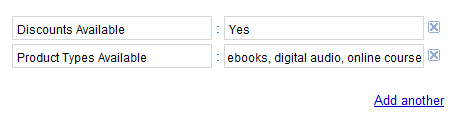
Step 11: Add other details that your customers would find helpful.
Add other details, which make you stand out in the crowd for potential customers or clients such as parking, brands or product types you carry, etc.
Step 12: Submit Info
Double check the info you’ve added and click the submit button to create your listing.

Step 13: Confirm your location.
Depending on your country and location, you may have two options to confirm. You may confirm by phone or by postcard. If your phone number and address are not already in the system, you will probably have to confirm by postcard. If this is the case, it can take up to 6 weeks to receive the postcard, according to the experience of some users. Ours came in 2 weeks.
When confirming by postcard, simply follow the instructions on the card to claim and activate your Google Places page. Your confirmation card may look something like this:
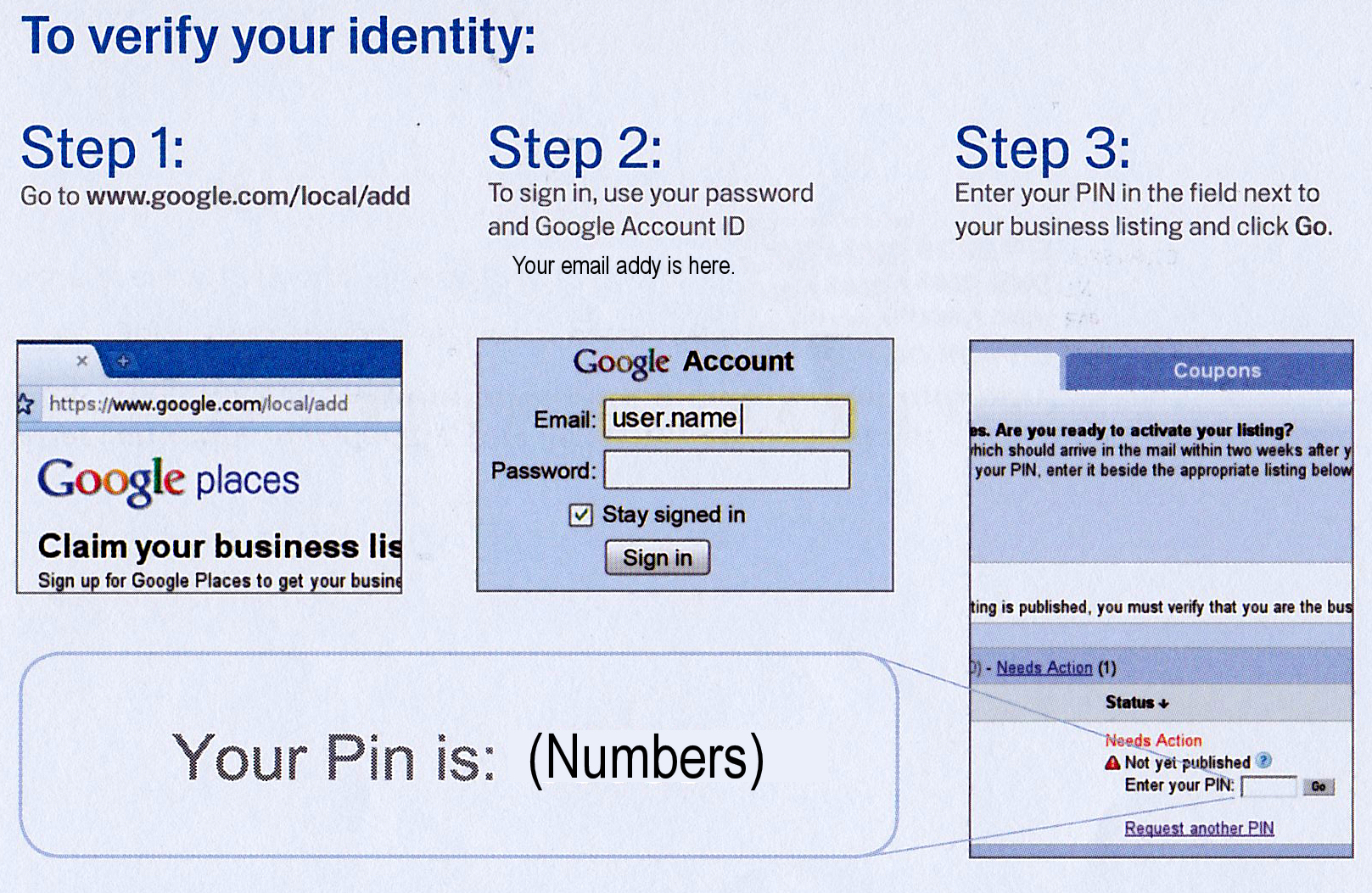
Basically, you will log into your Google Places page. You will add your pin number in the appropriate section and then click the go button.
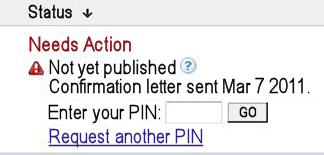
Once you have activated and published your page you’re ready to make your listing interesting!
