

In this tutorial, we will show you how to create a new Google document.
You will need:
- A Google Account
Step 1: Log into Account
Log into your Google account or create one if you don’t currently have an account..

Step 2: Navigate To Google Drive
On the main Google page click the “Drive”

Step 3: Select Doc Type
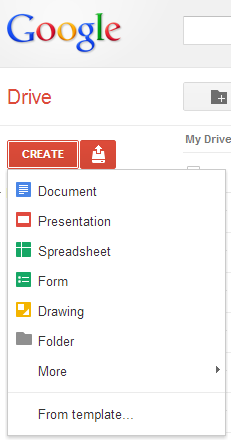
Click the “create ” dropdown button and select “document”.
Step 4: Name Google Document
When you are taken to the new blank document, you will notice the title area that says “Untitled document”. You will want to add your own title and save the document before you begin creating the content. Just click the title area and type your document name in the popup.

Step 5: Standard Format Buttons
Several familiar format buttons appear across the top of the screen. These are similar to the ones used in Word, OpenOffice, WordPress, and other word processors or text editors. Just use your mouse to highlight your written text and click the button to add the desired effect.
Here you may change your content with the bold, italic, underline, font color, background or highlight color, link, image, numbered list, bulleted list, decrease or increase indent, and the align text or spacing buttons.

Step 6: Page Margins Indents And Tabs
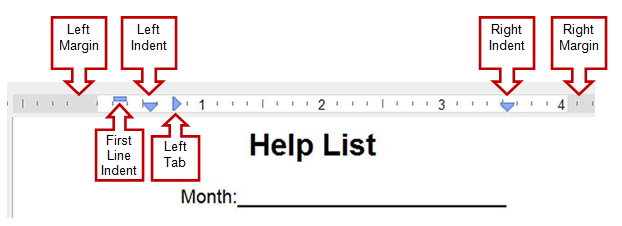
Look at the ruler just below the standard buttons. The gray area is the margin. The blue top-bar shows the first line indent. Down-arrows show the indents. Left and right arrows show tabs.
Change any of these elements, by sliding the items to the desired location. Move the margin by grabbing and sliding the edge of the gray area. To add a tab, simply click on the ruler to select the type of tab from the popup.
Step 7: Advanced Format Buttons
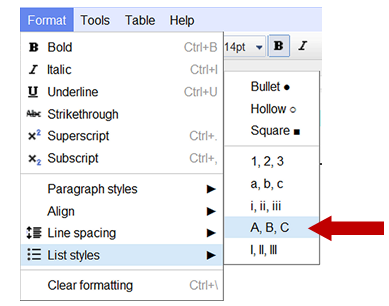
If you need advanced formatting options, click on the “Format” button at the top-left of the page. Here you will find options to use or change additional items such as strikethrough, superscript, subscript, or list styles. Below is an example of how to change list or bullet styles.
To change a list type or bullet, just highlight your list and click the appropriate button. In this case, we are changing the list to begin with capital letters.
Step 8: Saving And Exit
After you created your document and are ready to exit, check to make sure your document automatically saved. If you see the “Save now” button, your latest changes have not been saved. Click the save button and exit.
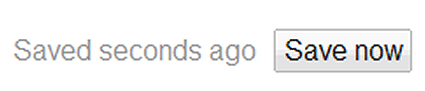
If the button appears to be grayed out, your latest changes have been saved and you may exit.
