In this tutorial, we will show you how to create a new Google drawing.
You will need:
- A Google Account
Step 1: Log into Google Account
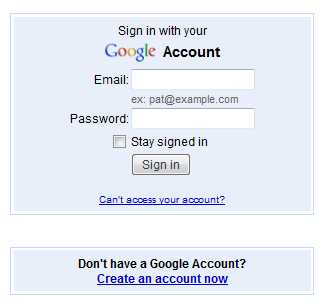
Log into your Google account or create one if you don’t currently have an account.
Step 2: Navigate To Google Docs
On the main Google page click the “more” dropdown and select “Documents.” This is where you will find a variety of different types of documents including drawings.

Step 3: Select New Drawing
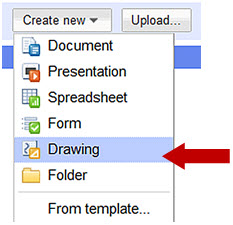
Click the “create new” dropdown button and select “drawing”.
Step 4: Name Drawing
When the new drawing appears, click in the “Untitled drawing” area to name your drawing.

Step 5: Navigate Tool bar
In the tool bar of the drawing app, the buttons allow you to add pre-set shapes, draw lines, arrows, curved lines, multi-sided shapes, text boxes, and images to your canvas.

To help you become familiar with the buttons, let’s create a pea pod.
Step 6: Add Pre-set Shapes
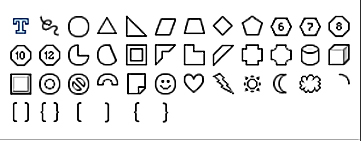
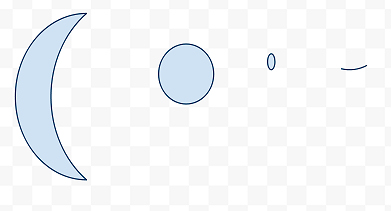
From the shape dropdown box, add 1 moon (pod), 1 large circle (peas), 1 small circle (eyes), and 1 arc (smile) to your canvas. Be sure to leave spaces between each shape. The dropdown is a bit tricky, click in the very corner of the button to get it to open and stay open.
Your canvas should look something like this:
Step 7: Change Shape and Line Colors
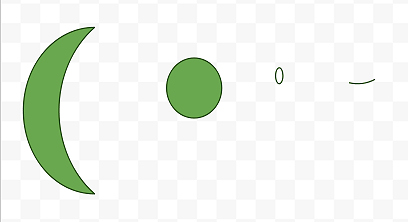
Once you add an element, you can change its color. Click the moon and then the paint can to choose a background color. To change the line color as well, click on the pencil. Do this for each shape.

After you change the colors, your canvas may look like this:
Step 8: Duplicate Images
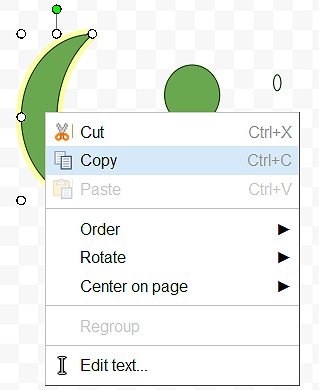
So far, it doesn’t look much like a pea pod, but it will. Now you’ll need to duplicate images and move them around by dragging them with your mouse. To duplicate, select a shape and right click to find the copy option. Then use the paste function to add it to the canvas. Do this for each shape.
Step 9: Move Images
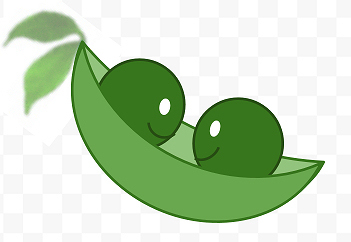
Select each image and drag it to the area where you’d like it to be. Simply said, put the puzzle pieces together to form your image. It may look something like this:
Step 10: Upload Images
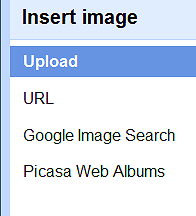
Ah! You noticed the leaves at the end of the pod. Those were not created in the drawing application. That image was on my computer. I simply uploaded it to the canvas. To upload pre-made images, just click on the “picture” button in the tool bar and upload an item from your computer, a specific URL, from an image search, or the Picasa web albums.
Step 11: Download Image
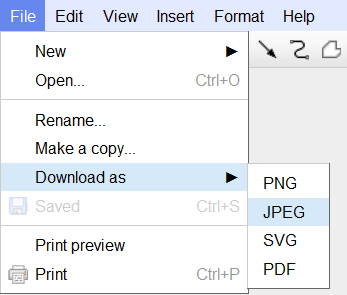
Now that your image is finished, you’ll want to download it to your computer for use in other applications. To do this, click on the “File” tab to choose download and the file type. When you get a popup, save to your computer. After the download is complete, simply close the browser.