

In this tutorial, we will show you how to create a new Google spreadsheet.
You will need:
- A Google Account
Step 1: Log into Google Account
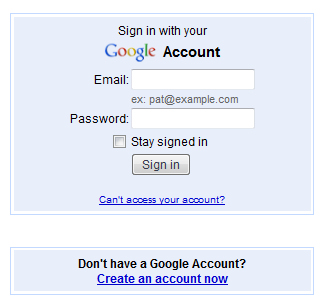
Log into your Google account or create one if you don’t currently have an account.
Step 2: Navigate To Google Docs
On the main Google page click the “more” dropdown and select “Documents.” This is where you will find a variety of different types of documents including spreadsheets.

Step 3: Select New Google Spreadsheet
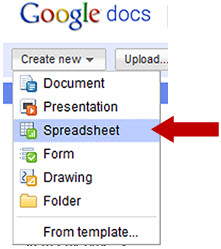
Click the “create new” dropdown button and select “Spreadsheet”.
Step 4: Name Document
When the new spreadsheet appears, click the “Unsaved spreadsheet” area to name it.

Step 5: Navigate Tool bar
The tool bar buttons allow you to print, undo, redo, copy to clipboard, color areas, format currency, format as percent, format number, font size, weight strikethrough, color, background, borders, alignment, merge cells, wrap lines, functions, and insert charts.

To help you become familiar with the buttons, let’s create an expense spreadsheet.
Step 6: Format Cells For Currency
Since the majority of the spreadsheet will consist of numbers, format columns B through N for currency. Highlight the columns and click the number tab. From the dropdown, click the option for currency with dollar sign and decimals.
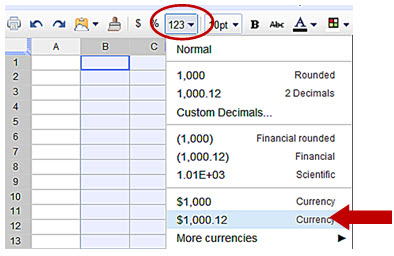
Now when you add a number to any of these columns, it will automatically show up as currency.
Step 7: Add Bill List
Now, add your bills in column A beginning on row 2 under the title “Home”. Note that it is bold while the individual bills are regular font.
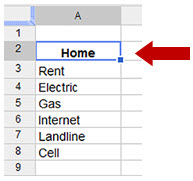
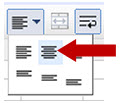
To center the word “Home” click the alignment button and choose center. You may center align the bill types as well.
Step 8: Add Months and Format
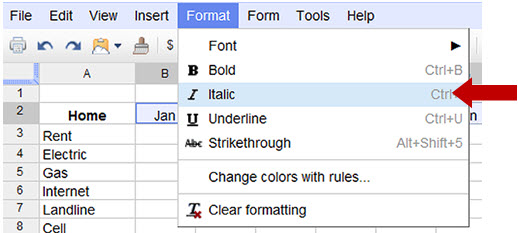
Beside “Home,” add the 12 months in row 2, columns B through M. Highlight the months and center as above. Then click the format button and select the Italic option to change the text style.
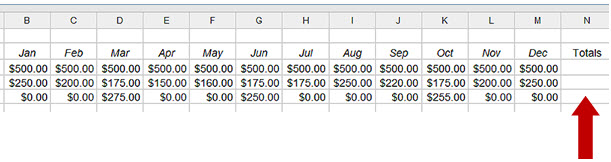
In the cell to the right of “December”, add the word “Totals” and format.
Step 9: Add Monthly Bill Amounts
In each month column (B through M), add the corresponding bill amount. Notice column N is empty now.
Step 10: Add Sum Formula To Total Rows
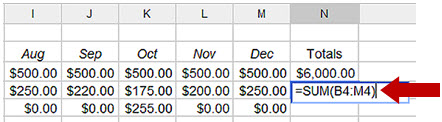
Highlight row 3 from column B to M. Click the formula button and select “SUM” to total all the cells in row 3. The total will be placed in column N, under the Total heading. After you total one row, left click to highlight the next row and the sum will appear in the last column. Repeat for the other rows.
Note:
Just after you click the “SUM” button, the formula will show in the total cell.
Step 11: Add Sum Formula To Total Section
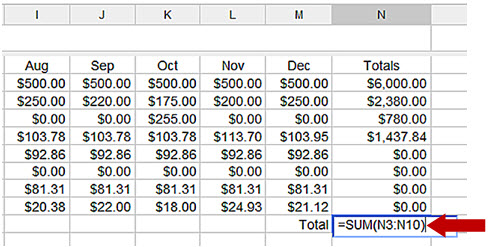
If you have your bills divided into sections by Home and Business or other sections, you may want to know the total for each section. In the example below, you can see the Home section total. To do this, highlight the section’s cells that are in column N. The sum will appear in column N below the last cell with a value.
Note:
From the formula, you can see the cells that will be totalled are the cells from N3 through N10.
Step 12: Merge Cells And Add Page Heading
On the first row, highlight cells in columns A through N. Then click the “merge” button to create one large cell.

