Hootsuite has a mobile app that allows you to do just about everything you can do in the online version, on a phone. You can view feeds, post messages, schedule messages and even setup up new social media accounts.
Here’s how to use the Hootsuite mobile app.
Step 1: Login to Hootsuite
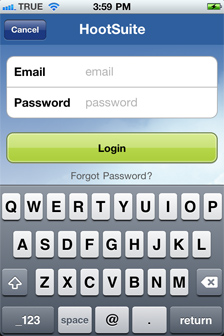
The first thing you’ll be asked to do upon opening the app is to sign in.
Step 2: Select and View Feeds in Hootsuite
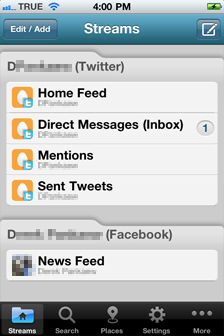
The first thing you’ll see upon logging in is the feeds screen. You’ll be able to see all the various feeds you’re subscribed to
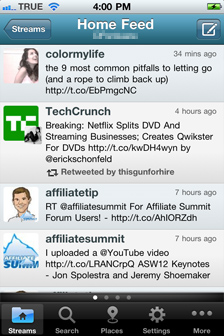
Click a specific stream to view its posts.
Step 3: Writing and Sending Messages in Hootsuite
To send a message, first click the “compose” button in the upper right corner.
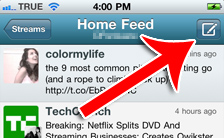
Write your message in the box that pops up.
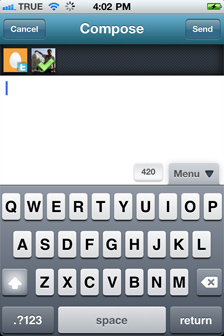
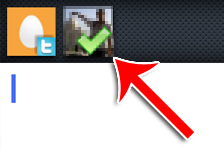
To choose which account(s) to send the message to, just click one of the account icons. The message will be sent to all accounts that have a check mark.
To access more options, click the “More” button.
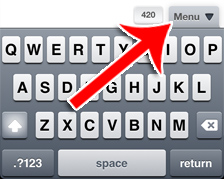
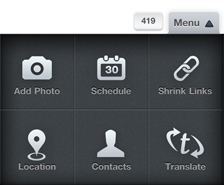
In this menu, you can schedule the post for a future time, add a photo, shrink links, add a location and more.
Step 4: Adding an Account in Hootsuite
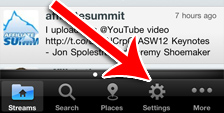
If you want to view streams from another account or send messages to another account, first click “Settings” in the bottom navigation bar.
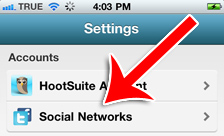
Click “Social Networks.”
Then click “Add Social Networks.”
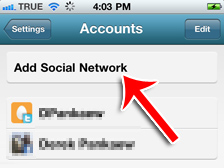
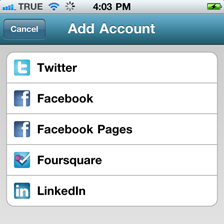
Choose what kind of account you want to add.
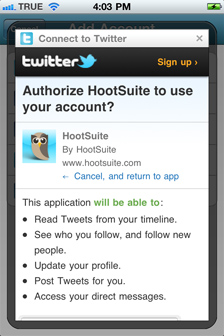
Finally, give Hootsuite the authorization it needs to connect with your account.