

In this tutorial, we will show you how to grant access or share documents.
You will need:
- A Google Account
- Pre-existing Documents
Step 1: Log into Account
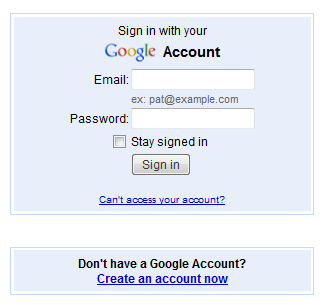
Log into your Google account.
Step 2: Navigate To Google Drive
On the main Google page click the “Drive” button.

Step 3: Choose Document to Share
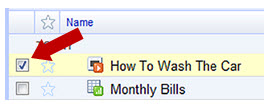
From the main document screen, where you can see all of your documents and folders, select a document that you would like to share. (You may also select sharing options from within an open document.)
Step 4: Click Sharing Settings
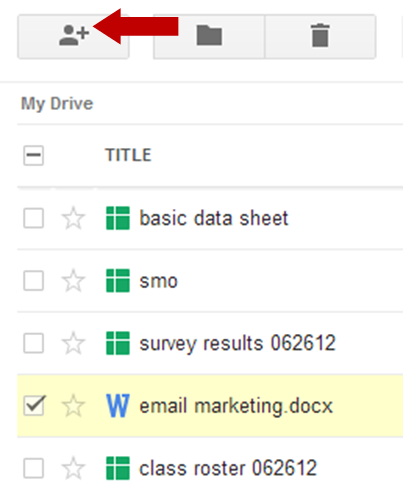
To access the settings, click the share button and select “Sharing settings” from the dropdown.
Step 5: Modify Sharing and Permission Settings
There are several settings you may want to modify when sharing a document.
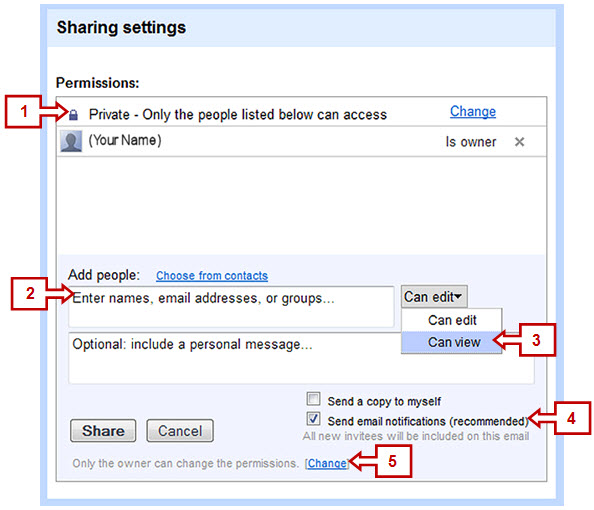
- Select visibility options – private, anyone given link, public can find link
- Add people to share access
- Grant general permissions – edit or just view
- Select notification type
- Set who can change permissions
Below, we have selected the most common settings.
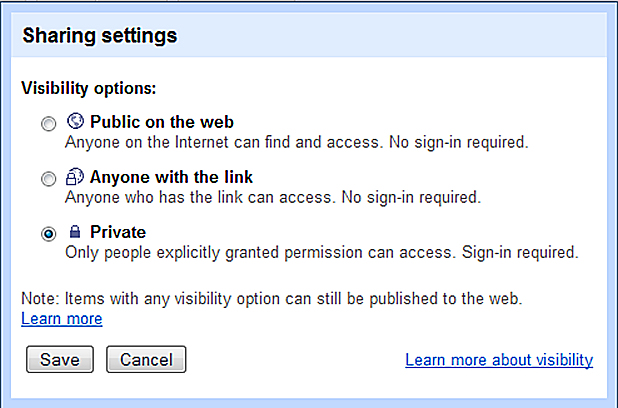
Step 6: Change Visibility Options
This is the popup box you see when you click the “change” link to edit #1 above. Choose your visibility option and save.
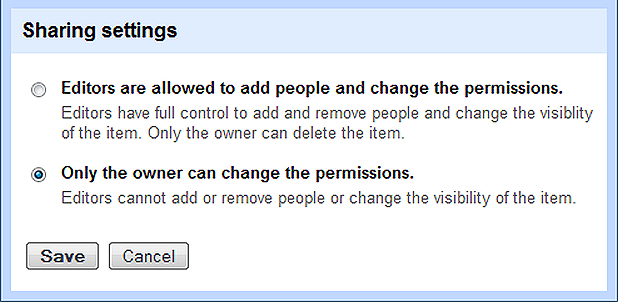
Step 7: Access To Change Permissions
This is the popup box you see when you click the “change” link to edit #5 above. Choose who has access to change permissions and click save.
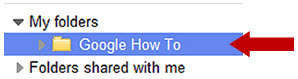
Step 8: Select Folders To Share
Click to select the folder in your sidebar that you’d like to share.
Step 9: Folder Share Options
Once you select the folder, you’ll see the folder title at the top of the page with a link to “share this folder.” Click the link to see the same popup and options as discussed earlier in step 5.

